At some point in your working day, assuming you potter with databases, you're probably going to want to run a script. Typically we might use SQL*Plus for this and copy and paste the full directory path. I tend to start the SQLPLUS.exe, and once logged in locate and drag the file to the SQL> prompt and run it. (By using drag n drop, I get the full path and file name.) If I start SQLPLSW.exe, either I type in the full path and file name or resort to various copy and paste steps.
A colleague sitting nearby made one of those "Hey Sue, I really like this feature" comments today. So I wandered over to see her 'feature of the moment'. She was in SQL Developer and running a bunch of SQL scripts. SQL Developer has really eased the pain of doing this task. Maybe the following will help you to.
Start with SQL Developer and open the file you want to run. I'll use demobld as it's short and sweet and pretty safe to execute. (demobld drops and creates EMP and DEPT and is typically used to refresh SCOTT's tables. To find demobld.sql, do a search on your database directory or find another simple script to run.) If you look at the image below, I have circled File ->New, as this is where you can start to open a file. You can see that I have previously opened demobld and so can use the "reopen" menu option. [click image for larger view]
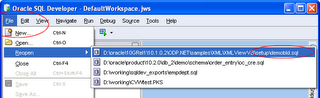
Of course, if you have associated SQL Developer with .sql files, then just double click the file and it'll open in SQL Developer.
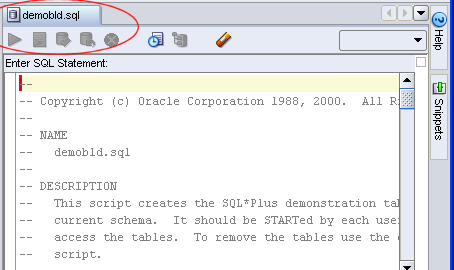
Now the first thing to notice is the name of the tab, is the file name. If you have a bunch of tabs open this is useful. The next thing, which is often a great frustration to our users, is the Run related commands are all grayed out.
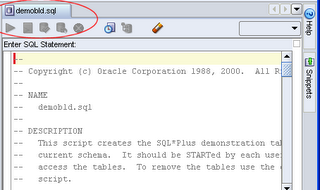
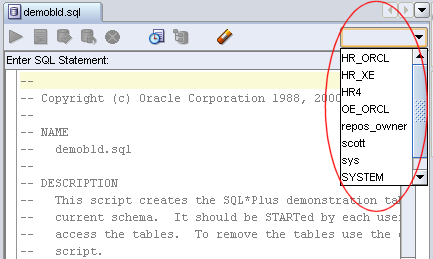
That's because you have not yet associated the file with a user! Use the droplist on the right-hand side to select your user.
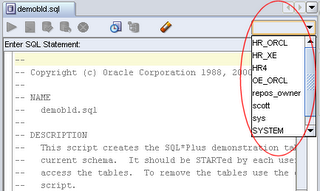 I selected the SCOTT connection. As soon as a connection is selected, the run commands are available. You should use Run Script (F5), as F9 only executes a single statement. This will run the file for your selected user.
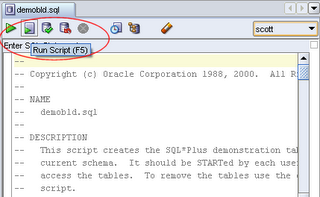 By running the script using F5, you run all the commands as the connected user and the output is printed to the window below. If it's a long script with lots of feedback, you can scroll up and down through the window. SQL*Plus can be maddening like that if you don't spool everything out to a file.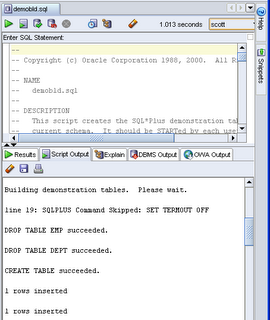
...and of course, if you want to rerun the script for another user? Just change the user by using the droplist!



 Posts
Posts