
Showing posts with label PL/SQL. Show all posts

04 October 2006

Running PL/SQL Code Using SQL Developer

I have seen a few questions about running PL/SQL using SQL Developer and what to do when encountering the PL/SQL error message "wrong number or types of arguments in call to '||' "

Here is some code for you. Assume I am using the HR schema and the EMPLOYEES table in Oracle 9i or 10g or Express Edition. In this instance we'll create a Package, but the principle is the same for functions and procedures. I'll give you some code to play with. (We have this same example in one of the JDeveloper tutorials on OTN if you are a JDeveloper user.)

Using SQL Developer 1.0:

Step1. Create a new Object TYPE. Here is the code:

create or replace type EMP_REC as object
(
employee_id number(6),
last_name varchar2(25),
job_id varchar2(10),
manager_id number(6),
hire_date date,
salary number(8,2),
commission_pct number(2,2),
department_id number(4)
);

You can copy and paste the code into the SQL Worksheet or use the dialog for Types, in the Connections Navigator.

Step 2. Create the package spec. Here is the code:

create or replace package emp_fetcher as
FUNCTION get_emp(emp_no IN NUMBER) RETURN emp_rec;
END;


Step 3. Create the package body. Here is the code:

CREATE OR REPLACE PACKAGE BODY emp_fetcher AS
FUNCTION get_emp(emp_no IN NUMBER) RETURN emp_rec IS
emp_found employees % rowtype;
emp_rtn emp_rec;
BEGIN
SELECT *
INTO emp_found
FROM employees
WHERE employees.employee_id = emp_no;
emp_rtn := emp_rec(emp_found.employee_id,
emp_found.last_name,
emp_found.job_id,
emp_found.manager_id,
emp_found.hire_date,
emp_found.salary,
emp_found.commission_pct,
emp_found.department_id);
RETURN emp_rtn;
END;
END;

Step4.
Now we are ready!
You can either select the package spec in the Navigator and use the context menu to run it.


or you can switch to the PL/SQL editor and run the Package from there.


Step 5. Now this is where we are headed. Oracle SQL Developer (and JDeveloper, if you are interested) creates an anonymous block for you. It provides a place to add "IN" parameters and the DBMS_OUTPUT for "OUT" parameters.

Here is the window before you add the parameters:
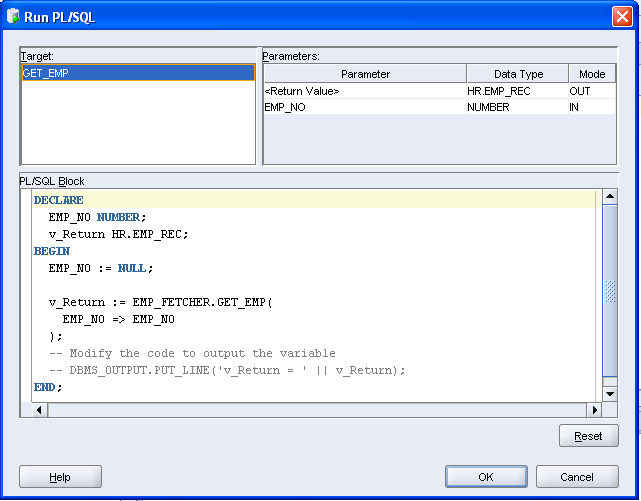

You can see the EMP_NO is a NULL. Update this with the employee number as required.
Note the DBMS_OUTPUT statement is commented out. Remove the comments and specify which of the values in the record you are interested in. The example I have given is "LAST_NAME", but if you refer to the record type we created, "SALARY" would also do, as would "hire_date" .

This is where you'd run into the error specified above. If you uncomment the DBMS_OUTPUT command, you must then pass the correct value.

Have fun with your PL/SQL.

13 July 2006

Remote Debugging with SQL Developer

It occurs to me that while we talk about using the remote debug facility in SQL Developer that you may not know how to use it. So in a few steps and with a few screen shots, I'd like to show you how it's done.
(Please note, to see any of the images clearly, just double click on them.)
1. Let's start with a connection to the database. Create a database connection. (File -> New Connection) and complete the details. I only use the basic tab, so don't need to set up tnsnames or anything else. You'll see the database is on my own machine in this example, but it need not be.


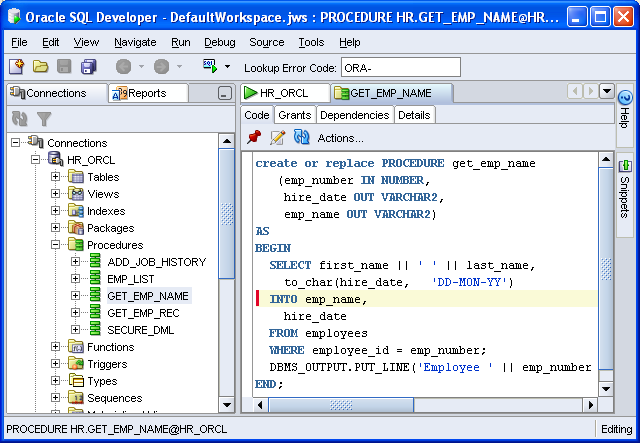
2. Now you can connect to any objects this user owns, using SQL Developer. You can browse the various objects the user has access to. I'm only interested in this procedure, which my user HR owns.


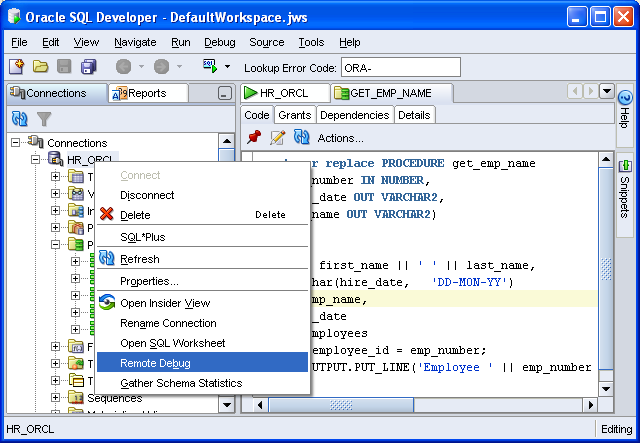
3. You can run and debug this procedure in SQL Developer, but that's not the purpose of the exercise. What we want to do is debug the procedure when it is executed from elsewhere, such as another programme or application. The starting point is to start a remote debug session in SQL Developer. You do this from the Database Connection as shown.


4. A dialog will display, requesting the listening port number and the IP address of the machine running SQL Developer - effectively it's your computer, listening for the database to connect and using that port range to do so.
You can set the range of ports through a Preference in SQL Developer. If you run into issues, look out for firewalls between the machines, blocking these ports.


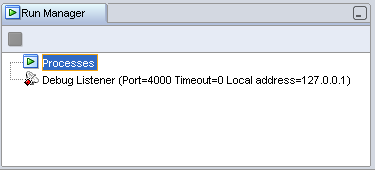
5. Once you have set the remote debug details, you should see the run manager display these.


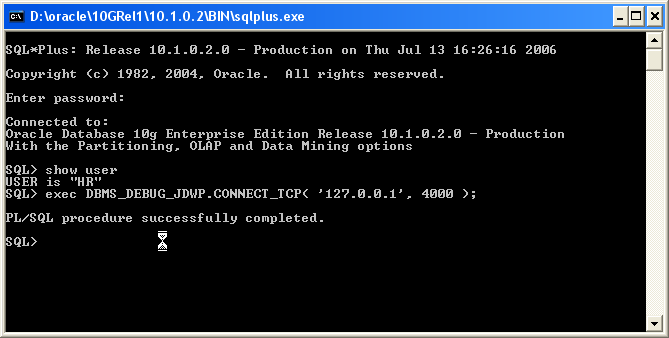
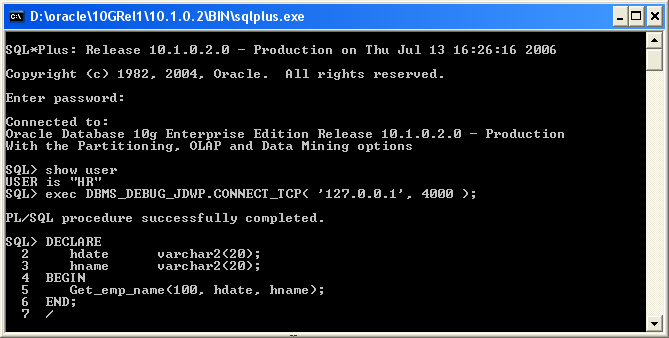
6. Now you should start a remote session. Using a SQL *Plus command line session will do.

* Invoke SQL *Plus for this user
* In the SQL *Plus session enter the following command:
exec DBMS_DEBUG_JDWP.CONNECT_TCP( '127.0.0.1', 4000 );

You should recognize the parameters from the previous dialog.

If you are debugging an application remotely, then this PL/SQL procedural call will need to go into that application, just for the debug purposes. You'll remove it afterwards.


7. Return to SQL Developer and set a breakpoint in the procedure.
Note: If you are debugging a procedure, you must remember to Compile for Debug, before you can start debugging.


8. Now you need to return to the SQL*Plus session and execute your procedure. If you debug in SQL Developer, an anonymous block is created for you to execute the procedure. In this case you'll need to write one to execute the procedure from SQL*Plus.

Note: In the procedure we have a DBMS_OUTPUT command, so you should also add the 'Set Serveroutput on' command.


9. As soon as you execute the anonymous block, you'll be returned to SQL Developer to debug the session there. Step into the code as you would in a usual debug session.


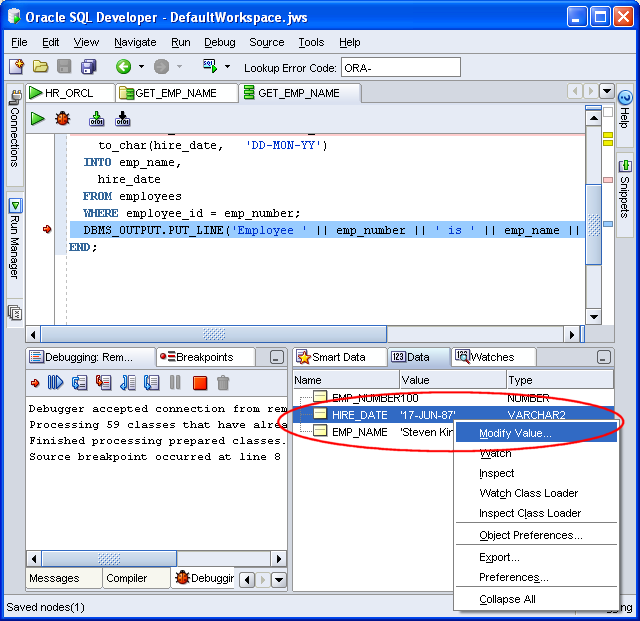
10. You can watch data and modify values in the same way as a normal debug session.


In this example, I'll modify the hire date.


11. Once you have reviewed the data, or made the modifications you want, resume debugging. Once the debug session is complete the control is returned to your remote session. In this case, SQL*Plus. You'll notice the modified date reflected in the output.


Quite a long piece, I know, but I think we often veer away from the unknown or untried. Hopefully once you have walked through an example, you might be able to make more use of this very useful feature.