


 Posts
Posts



Last week the SQL Developer team met in San Francisco for Oracle OpenWorld. We love it as it's a great opportunity to talk to customers and hear what they really like and don't like and to listen to ideas. It's also a great opportunity for the team to get together and catch up as we're scattered across a few countries!
OpenWorld is a huge undertaking for Oracle and many staff are involved on some level or other, whether at the event or behind the scenes before the show. There is a secondary developer focused event that runs simultaneously, this year starting on Sunday, called Oracle Develop. It's a smaller event, a conference-within-a-conference, and is focused on technical talks and hands-on sessions. We had a few talks and a variety of hands-on sessions at Oracle Develop and a few talks and demo pods at OpenWorld. Our talks and hands on sessions were mostly well attended, but it was the news of the new Data Modeling support that stole the show. Everyone was really interested in what the product will offer and of course when it will be available. As ever we can't provide exact release dates, but we're looking at 2009 for production. We're currently running internal preview releases and will move to external preview or early adopter releases within the next month or so. There are a few final things that need to be sorted before we do that. Watch the OTN Forum for an update on that.
SQL Developer SIG
We launched our SQL Developer SIG at OOW. One of the concerns we have is that writing XML extensions is easy and yet we don't hear of many folk doing that. Maybe you all are, but don't share your experiences! We also have a growing set of developers building more complex extensions, mostly java, who are looking for advice and pointers. We have now setup an area on http://wiki.oracle.com for the SQL Developer SDK and will continue to add detail and examples to this.
So the idea was that if we set up a SIG then we'd have a vehicle to talk to those developers regularly. But a SIG is also much more and so we held the initial, kick-off of the SQL Developer SIG the Unconference (at OOW) on Thursday morning early and we discussed options and plans. The SIG is for everyone using SQL Developer, not just those wanting to build extensions. There is so much to discuss and share and as ever it's good to get opinions and input from the community. One of the plans is to have a communal SQL Developer blog. More on that later.
More Conferences
There are still more conferences around, Oracle Develop is on the road and along with other events, SQL Developer is visiting Scotland, South Africa, Switzerland, Germany, UK, China, and India and that's this year!
We're starting to plan our events for next year, if there is a conference near you or a subject area you think we should look into, let me know.
Showing posts with label Extensions. Show all posts
Showing posts with label Extensions. Show all posts
01 October 2008


25 August 2006
A JDeveloper Tip that Might be Handy for SQL Developer
There is a blog that might be a handy one to dip into every so often. The site is DuffBlog. Brian Duff is a developer in the JDeveloper team. He is one of the JDeveloper developers who works closely with the SQL Developer development team. Brian is works on the IDE and framework and so is an important chap for us. Anyway Brian blogs from time to time and if you're a SQL Developer user, there may be a few useful gems for you among his entries.
Take a look at Seriously Customizing JDeveloper. The basic premise in the entry is about how to disable any extension in JDeveloper. The very last paragraph of that blog entry says "As an added bonus, you can also do this in SQL Developer..."
Then he did it again this week...just a little piece of useful information on opening files....
Just thought you might be interested.
Take a look at Seriously Customizing JDeveloper. The basic premise in the entry is about how to disable any extension in JDeveloper. The very last paragraph of that blog entry says "As an added bonus, you can also do this in SQL Developer..."
Then he did it again this week...just a little piece of useful information on opening files....
Just thought you might be interested.
08 August 2006
Let's Get Started with an Extension for SQL Developer (in 10 Steps)
So apparently it's possible, but have you seen it done? You've heard about it. They say..."If there is other stuff you want in SQL Developer just build an extension..." Huh, it's as easy as that ?
So let's do it. Let's add an extension to SQL Developer, starting at the very beginning. Getting started, from scratch...installs and all.I'll be using JDeveloper. If you're an Eclipse user, then you should check out Kris Rice's blog.
For this exercise, I created a fresh directory and did fresh installs, to keep things uncluttered and so that the directory can just be deleted when I'm done. If you have the products installed, you can use them, just skip to Step 4. If you want to follow along, then create a separate, fresh directory. If you use your existing products, the extensions can all be deleted, so you can tidy up afterwards. I did the full exercise over broadband connection, and none of the installs or downloads take long.
STEP 1. Getting JDeveloperDownload JDeveloper from OTN. [If you already have JDeveloper 10.1.3, you can use that.] If you are downloading JDeveloper for this purpose, then all you need is the Java install. (The others are bigger downloads and installs. The process that follows is the same.)
 I chose the Complete Install (i.e. with JDK 5.0.5). This is a 111MB download. If you already have the JDK 5.0 on your machine you do not need this. I did this install for completeness. When I install SQL Developer I'll install without the JDK, as I only need it once.
 Step 2. Getting SQL Developer
Download SQL Developer (or use what you have)
Please note, the SQL Developer site talks about JDK 1.5. Well, this is JDK 5.0. Go figure. There was a name change, so they're the same. The J2SE latest release is 5.0. The name and version changed from 1.5.0 to 5.0. So where you see 1.5, read 5.0! The short of it is that all you need is the smaller SQL Developer install. (28.9MB) if you've already downloaded and installed JDeveloper with JDK 5.0.
Step 3. Installing the Software
Unzip both files. ( I like to keep things clean, so have a JDeveloper folder and a SQL Developer folder)
Step 4. Getting Started
Start JDeveloper ( Double click jdeveloper.exe)
Step 5. Setting up the SDK
5a. In JDeveloper, use the menu Help -> Check for Updates...5b. Select the Official Oracle Extensions, you don't need any of the others, so deselect them if they are already checked. Click Next.
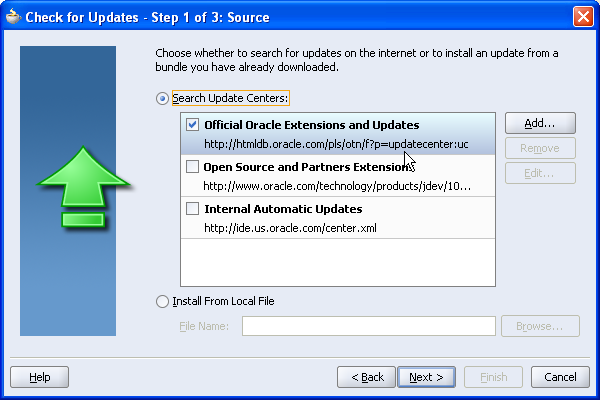 5c. Select the Extension SDK from the list. Deselect any others that might be checked. You can always come back and get other updates later. Click Next.
 When you select the SDK and click next, the Check for Updates utility will go to OTN to get the required update.The installation is 15.95 MB. Before the download starts, you'll be prompted for your username and password. This is your OTN account, the same as the sign on you use for the Forums. If you are new to this, just create a sign on at this point. It's free.
 5d. Once the updates are installed, you'll need to restart JDeveloper. You'll be prompted to upgrade from a previous version, because you have installed the SDK updates, which will bring in your database connections and other preference settings. As I am working with a clean install, I do not want to do this.
5e. As JDeveloper restarts, you'll be prompted to install the SDK Samples. I'll be using the samples in this walk through, so if you want to follow along, say Yes.
You do not need the samples to create your own extension. You only need the SDK which has now been installed.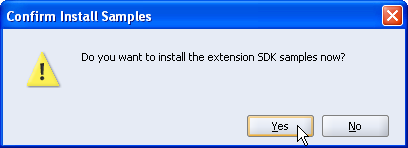 Step 6. Finding the New Workspace
A new Application Workspace, extensionjdk.jws is created. It has a long list of projects, all of which are a sample extensions in varying degrees of complexity. They are all documented in the SDK help.
If you are using an existing JDeveloper install and you already have a number of workspaces, you might not be aware that this new application workspace has been created for you. It's easy to see if you have started the process from scratch and have nothing else built yet!
Either way, find the extensionjdk.jws application workspace.
Step 7. Working with the Samples
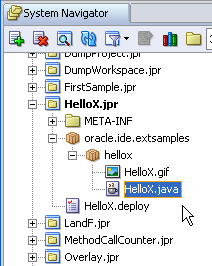
There are loads of samples, but let's start with something easy. What I want to do is install the HelloX.project into my SQL Developer setup. Find HelloX.jpr and expand the project. Expand the packages oracle.ide.extsamples and hellox. You'll see an image file and a .java file. If you double click the java file you'll see the java code. That's what you will need to write when you get down to it. What we're going to do is assume we wrote that fab code and just deploy it.
 Step 8. Changing the Deployment Profile
8a. What we want to do is deploy this project to SQL Developer. By that I mean, having "written my extension", I want to run it from SQL Developer. To do this we need to change the deployment profile for the project. Select HelloX.deploy
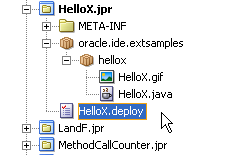 8b. Double-click, or select Properties from the context menu, to invoke the profile properties dialog.
 8c. You want to change the location of the .jar file. (That's the 'zipped' version of all your files for the extension) Browse to your SQL Developer folder and find jdev\extensions (This 'jdev' folder name will change in SQL Developer 1.1.)
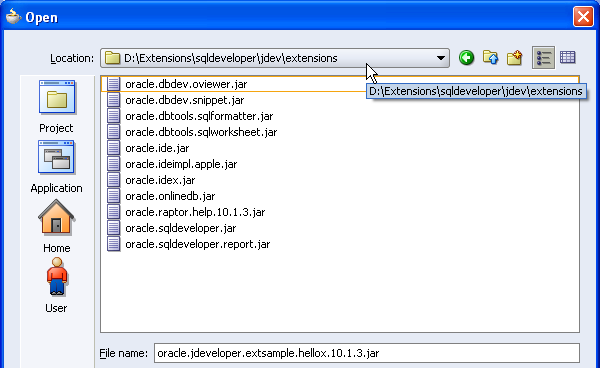 8d. Click OK to apply the changes.
Step 9. Deploying the Updated File
9a. You'll see the HelloX.deploy is now in italics. It means you have changed the file. Click Save.
9b. You can now deploy the file. Use the context menu and select Deploy to Jar.The Deployment Log window should display a message indicating the file was deployed to your SQL Developer folder.

Step 10. Now to Run the Extension in SQL Developer
Start SQL Developer!
This particular piece of Java Code adds a new item to the New Gallery (trust me on this one) So, in SQL Developer use the File -> New... menu option to invoke the New Gallery. Expand General -> Projects. You should see the HelloX option displaying in the New Gallery.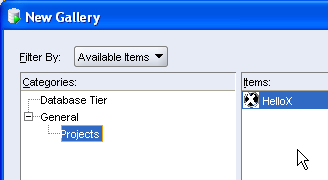
Double-click HelloX to invoke and use the extension.

There you go.
In a while I'll do a blog entry on building a small extension from scratch.
In the meantime, have a think about a few extensions you might like to build! Or play with more of the Samples in the SDK. Remember, if you're a PL/SQL junkie, and not a Java junkie, then buy your Java buddie some coffee in exchange for a few suggestions here or there.
...and I loved this book....Head First Java by Kathy Sierra - Now she knows how to write a great techie book...
30 May 2006
Write Your Own Extension to SQL Developer
SQL Developer is not yet 6 months old, whether you are talking first appearance on OTN in the Early Adopter in late December 2005, or initial production release in March 2006. Already there are four extensions available on external sites. Take a look at the new Extensions Exchange for SQL Developer on OTN and see if there is something there that interests you.
Why not write one of your own? You might have a utility that you use all the time or some functionality that would make your daily tasks easier.
Kris Rice has a few entries on his blog on writing extensions, so take a look there and see if there is something that might trigger an idea or offer some advice. Of course you can also take a look at the extensions written by the JDeveloper team and user-base, as their exchange has been running for a few releases now.
Here are the links to Kris's extension entries:
...and let me know if there is anything you've written that we can add to the site.
Why not write one of your own? You might have a utility that you use all the time or some functionality that would make your daily tasks easier.
Kris Rice has a few entries on his blog on writing extensions, so take a look there and see if there is something that might trigger an idea or offer some advice. Of course you can also take a look at the extensions written by the JDeveloper team and user-base, as their exchange has been running for a few releases now.
Here are the links to Kris's extension entries:
- SQL Developer Extensions and Eclipse (3 May)
- XMLTypes, Excel and an Example Extension (6 March)
- Enhanced Excel and Save Snippets (8 March)
- Forgotten datatypes (15 Feb)
- Forgotten datatypes part 2.... (16 Feb)
...and let me know if there is anything you've written that we can add to the site.
Subscribe to:
Posts (Atom)
